Real size
1 cm on canvas = 1 cm on your screen.
Calibrate
Hold a real ruler to this bar and drag the slider until they match.
1 cm on canvas = 1 cm on your screen.
Hold a real ruler to this bar and drag the slider until they match.
 pairPaintMore info & guides →
Free online paint & whiteboard
Draw, paint and whiteboard together — right in your browser. No login, no download, nothing to install.
pairPaint is a free online paint app and collaborative whiteboard. Sketch with pens and brushes, add shapes, stickers and text, then share a room code so friends, classmates or students can draw with you live.
Pen, highlighter and eraser sit next to 24 brush styles — round, marker, calligraphy, spray, crayon, neon, chalk, airbrush, fur, sparkles and more — with full size and opacity control.
Circle, rectangle, triangle, star or heart with your own fill, outline and pattern, plus lines and arrows with adjustable thickness and dashed styles.
Stamp hundreds of stickers, coloring outlines for younger kids and emojis, then add captions in five fonts — rounded, handwriting, bold, classic or typewriter.
Choose plain, ruled, graph, dot or numbered paper in any color, show an A4 portrait or landscape border, and print exactly what you see.
Your canvas autosaves in this browser. Export a PNG picture, copy any area as an image, or download every page as one PDF document.
Undo and redo as much as you like, clear, start over, or save and come back later — nothing is ever lost by accident.
A real geometry box inside Shapes: a 15 cm ruler, a 180° protractor, a compass, a divider and two set squares, all with real measurements.
Make 1 cm on canvas equal 1 cm on your screen. Calibrate once with a real ruler from the floating menu, and the ruler measures true size.
Pick a tool from the toolbar, choose a color and size, then draw straight on the paper. Press Ctrl+Z to undo anything — nothing can break.
Open Classroom, tap Create room and share the 5-letter code. Open mode puts everyone on one canvas; creator mode gives each student their own.
Use Export for a PNG picture or a multi-page PDF, copy a selection as an image, or switch on the A4 border and press Ctrl+P to print.
Write instructions with the Text tool, circle key points with the highlighter, pause drawing when you need everyone's attention, and use Send my canvas to all to hand out a starting frame.
Hold the collapse button to flip the toolbar horizontal — History on the left, Page on the right — then drag it anywhere by its top row. Resize your brush with = and -, zoom with [ and ].
Short visual guides for the features new users ask about most. Every screenshot is the real app.
A room lets friends, classmates or family draw on the same canvas at the same time, from any device. No accounts, no installs.
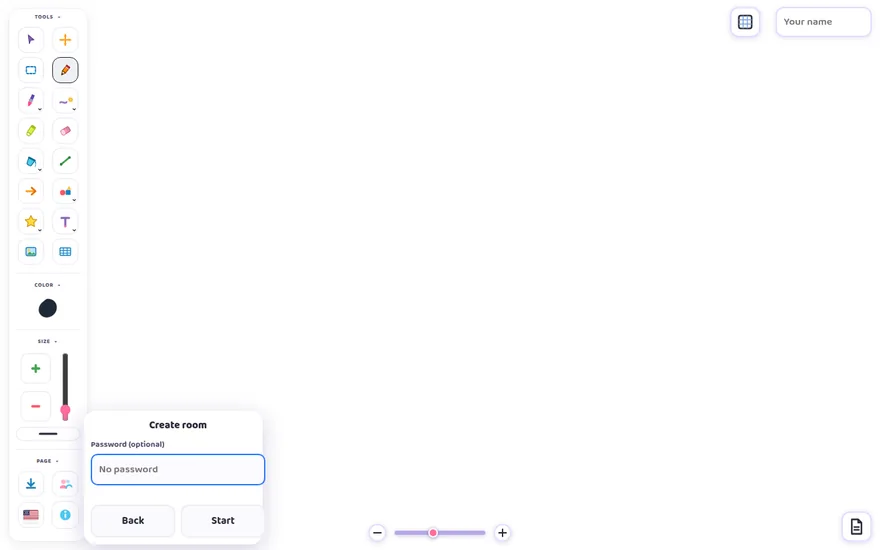
The creator picks a mode in the room panel (top-right). You can switch any time.
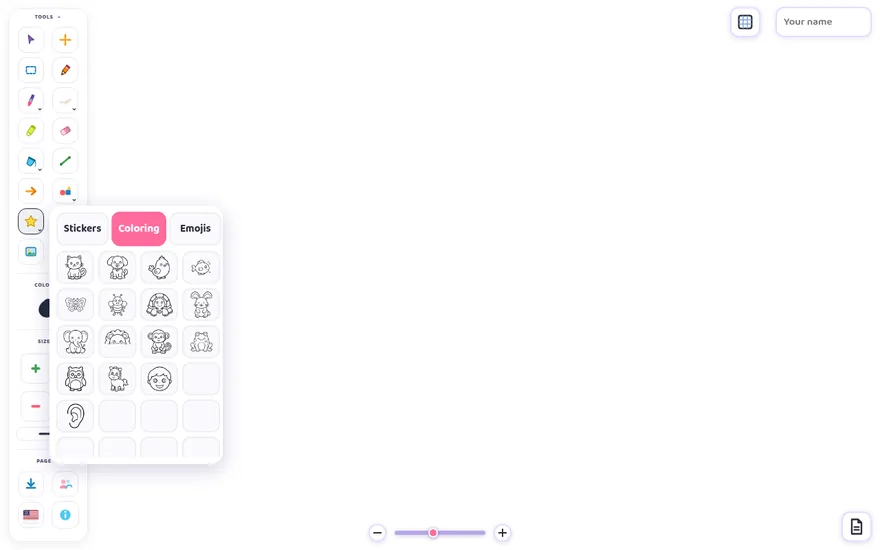
The sticker tool keeps vector stickers, planet stickers and emojis together under Stickers. Coloring shows the outlines first, with full-page colouring scenes below them, and classroom pictures live under Class.
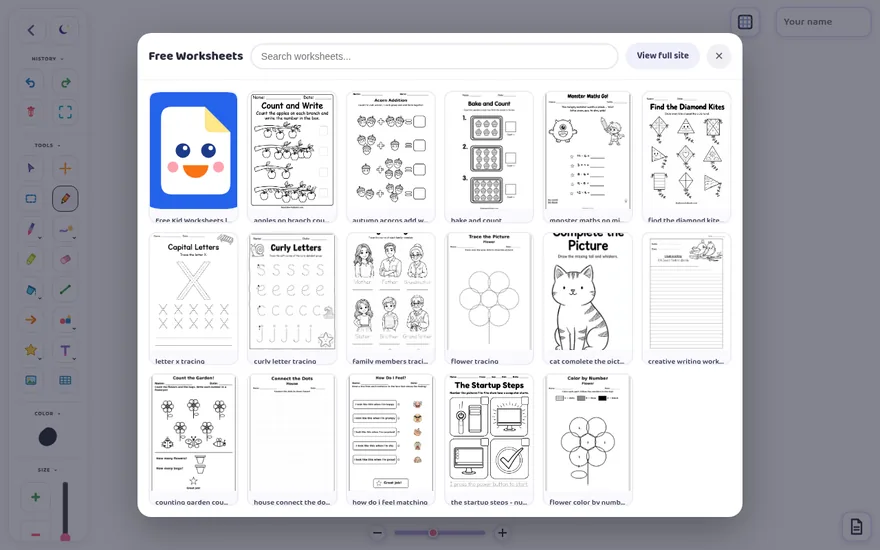
Drop a free printable worksheet onto the canvas and draw, colour or write on it.
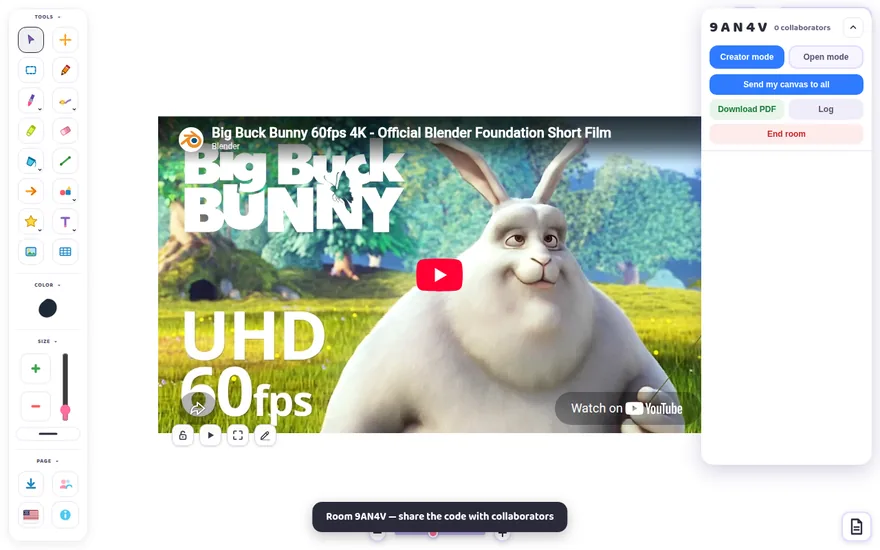
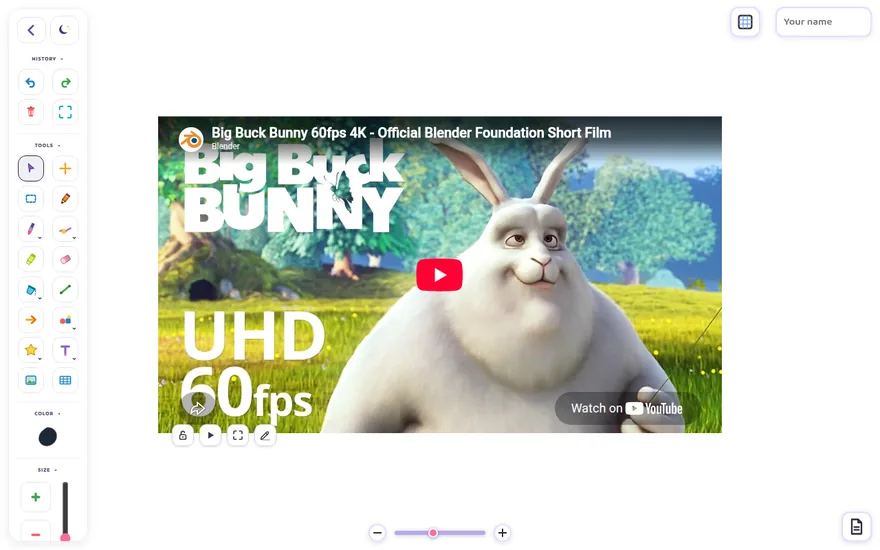
Play a video under the canvas and paint over it — great for tracing, labelling and lessons.
Longer reads from pairPaint — what I built, why clean kids-friendly drawing apps are so rare, and practical ideas for teachers and families.
A plain-English introduction to pairPaint — a free online paint and whiteboard app that opens in any browser — plus the story of why I built it.
I went looking for a clean, safe drawing app kids could actually enjoy — and found pop-ups, sign-ups and clutter. Here is what is missing.
Create a room, hand out your example, watch every student draw live, then collect the whole class's work as a single PDF.
Browse every pairPaint post — guides, classroom tips and product news.
Run a whole digital art lesson from the Classroom — open a room, watch every student, hand out your example and collect their work as one PDF. No accounts, no installs.
Tap the people icon in the toolbar, type your name and press Create room. Add a password if you like, then pick a mode: Creator mode gives every student their own canvas, while Open mode puts the whole class on one shared canvas.
Tap the 5-letter room code to copy it, then share it on your board or in chat. Students open pairPaint on any device, press Join room, enter the code and their name — no accounts, no installs, and it works on tablets and Chromebooks.
Student drawings stream into your panel as live thumbnails. Click a card to watch it full size, turn on Draw on canvas to sketch feedback straight onto their work, pause a student who needs to listen, or remove anyone from the room.
Draw instructions or a starting frame on your own canvas, then press Send my canvas to all to hand the same page to everyone at once.
Press Download PDF to collect every student's canvas into one PDF with a named page for each (Open mode saves the shared canvas instead). When class is finished, tap End room — reopen it any time with Rejoin room.
Twin is pairPaint's friendly mascot. Every so often he peeks in from the side of the screen to say hello — with flapping ears and a happy blink. Kids love spotting him while they draw. (Made a grown-up drawing instead? Long-press him and he'll stay away for 10 minutes.)
Run live whiteboard lessons: create a room, watch every student canvas update in real time, and draw guidance straight onto their work.
A big-button paint box with stickers, coloring outlines and silly brushes — plus Twin the elephant cheering you on. Nothing to break, nothing to buy.
Plan posters, sketch diagrams, jam on a shared canvas with friends, then export your work as a PNG picture or a multi-page PDF.
Yes — every brush, sticker, shape and classroom room is free, with no account and no download. Just open the page and start drawing.
No. pairPaint runs entirely in your browser on phones, tablets, Chromebooks and PCs. To draw together, one person creates a room and shares the 5-letter code.
Your canvas autosaves in this browser, so you can close the tab and come back later. Use Export any time to keep a PNG picture or PDF document.
Rooms are private — only people with your code (and password, if you set one) can join. Creators can pause drawing or remove anyone, any time.
Yes — pairPaint supports touch as well as mouse, so it runs on iPad and Android tablets, Chromebooks, Windows PCs and classroom touch displays.
Open Classroom (the people icon), create a room and share the code. Anyone can join from any device — no account needed. Only people with the code (and your password, if you set one) can get in.
Once the page has loaded you can keep drawing and your canvas still autosaves locally. Live rooms, remote updates and the website guides need a connection.
pairPaint is free for everyone and supported by advertising on the site. There are no paid tiers, no locks and nothing to buy inside the app.
No sign-up and no personal details: drawings are stored only in this browser's local storage, room codes stay private to the people you invite, and your artwork never leaves this device unless you join a room or export it.